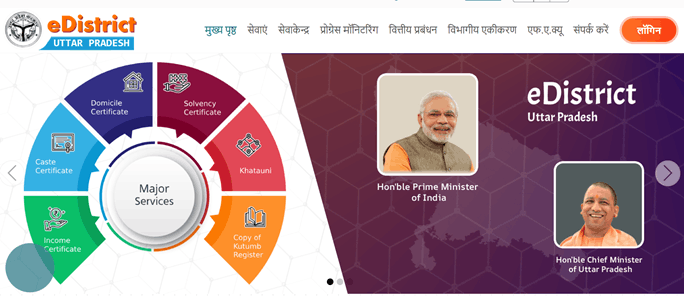
e-District HP is the online citizen service system of the Government of Himachal Pradesh. The portal allows residents to apply for certificates, welfare services and several other government services without having to visit the concerned office for every step. An important recent change is that the Himachal Pradesh e-District portal has been renamed HimSeva. The old e-District address now directs citizens to the new HimSeva website for services and applications.
Official HimSeva Portal: himseva.hp.gov.in
Through HimSeva, citizens can register, login, submit applications, pay applicable charges, track applications, verify certificates and download approved certificates. The portal also provides access to municipal, welfare, utility and other departmental services.
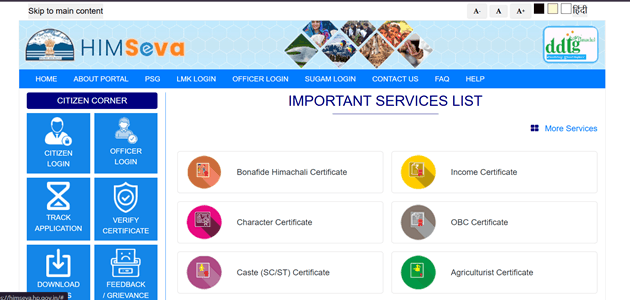
e-District HP Is Now HimSeva
People searching online may still find the names HP e-District or Himachal Online Seva. These refer to the earlier version or name of the state’s citizen service platform.
The Government of Himachal Pradesh now clearly states that the e-District portal has been renamed HimSeva. Citizens applying for a new service should therefore use the HimSeva portal rather than relying on an old bookmarked e-District page.
The main HimSeva homepage provides direct options for Citizen Login, Track Application, Verify Certificate and other services.
What Services Are Available on HimSeva?
The portal covers a large number of services from different Himachal Pradesh government departments. Popular certificate services include:
- Bonafide Himachali Certificate
- Income Certificate
- Character Certificate
- OBC Certificate
- Caste Certificate for SC/ST
- Agriculturist Certificate
- Legal Heirs Certificate
- Unemployment Certificate
- Land Holding Certificate
- Economically Weaker Section Certificate
- Rural Area Certificate
- BPL Certificate
- Copy of Pariwar Register
- Birth Registration and Certificate
- Death Registration and Certificate
- Marriage Registration and Certificate
The wider portal also covers municipal services, ration-card services, electricity services, welfare schemes, water connections, trade licences and several other departmental services.
How to Register on e-District HP/HimSeva
A citizen account is generally required when applying for services online.
Follow these steps:
- Open hp.gov.in.
- Select the required service or go to Citizen Login.
- Choose the Sign Up or new-user registration option.
- Enter the applicant’s name and other personal information.
- Provide a working mobile number.
- Enter an active email address.
- Fill in the address and other profile details requested.
- Complete the captcha or verification process.
- Submit the registration form.
- Check your registered mobile number and email for login credentials.
- Use the credentials to login to HimSeva.
The portal’s registration system states that the username and password are sent to the registered email address and mobile number after a profile is successfully created.
How to Login to HimSeva
Once registered, citizens can access the services available through their account.
- Visit the HimSeva portal.
- Click Citizen Login.
- Enter your User ID.
- Enter the account password.
- Select the appropriate user type if requested.
- Type the captcha shown on the screen.
- Click Submit.
- Open the citizen dashboard.
- Select the service for which you want to apply.
The current login page also provides a registration section asking for details such as name, mobile number and email ID for new users.
How to Apply for a Certificate Online
The exact documents and charges vary according to the service. Applicants should first open the service page and check its supporting-document requirements.
The usual process is:
- Login to your HimSeva citizen account.
- Select Apply for New Service.
- Choose the concerned department.
- Find the certificate or service you need.
- Click Apply.
- Read the description and supporting-document list.
- Fill in all required applicant details.
- Upload clear copies of the necessary documents.
- Check the form carefully before submission.
- Click Submit.
- Proceed to the payment page if a fee is applicable.
- Complete payment using one of the available online methods.
- Download the confirmation or acknowledgement receipt.
- Keep the application number for future tracking.
HimSeva service pages state that applicants are redirected to the payment window after submitting the application, where applicable, and can download a confirmation receipt after completing the process.
Documents Commonly Required
Document requirements are different for each service. Depending on the certificate, applicants may need:
- Residence proof
- Identity proof
- Aadhaar details where applicable
- Passport-size photograph
- Affidavit
- Income-related documents
- Certificate from Gram Panchayat or local authority
- Existing caste or category certificate
- Family-related records
- Land documents
- Self-declaration
- Other service-specific supporting documents
For example, the Income Certificate service currently lists residence proof and an affidavit stating family income from known sources. The Bonafide Himachali Certificate requires residence proof along with a letter or certificate from the Pradhan or local-body head.
How to Check e-District HP Application Status
HimSeva provides a public application-tracking facility, so users do not necessarily have to login merely to check basic application status.
Follow these steps:
- Open the HimSeva homepage.
- Click Track Application.
- Select Search by Application No.
- Enter your application number.
- Click Search.
- Check the latest application status.
The portal also provides an Advanced Search option. This can use details such as:
- Service name
- Date of application
- Applicant name
- Mobile number
This can be useful if you cannot immediately locate the application through the standard search option.
How to Download an Approved Certificate
Once the concerned authority approves an application, the certificate can be downloaded electronically for services that provide a digital certificate.
Follow these steps:
- Login to your HimSeva account.
- Open Approved/Rejected Applications or the relevant application section.
- Search for the application.
- Confirm that its status shows Approved.
- Click the View option against the application.
- Open the generated certificate.
- Select Download.
- Save the certificate on your computer or mobile phone.
- Use the Print option if a paper copy is required.
Official Himachal Pradesh user instructions show that once an application is approved, the applicant can open the certificate and use the Download option to save it.
How to Verify an HP e-District Certificate
HimSeva also provides a public certificate-verification facility. This can help institutions, employers or citizens confirm details of an electronically issued certificate.
To verify a certificate:
- Open the HimSeva portal.
- Click Verify Certificate.
- Select the relevant service name.
- Enter the application or certificate number.
- Enter the captcha.
- Submit the details.
- Check the verification result displayed by the portal.
The current verification page specifically accepts the Service Name and Application/Certificate Number.
HimSeva Fees and Payment
There is no single fee applicable to every HimSeva service. The amount varies according to the certificate or department.
Depending on the service, the total may include:
- Government application fee
- Processing fee
- LMK user charge, where applicable
- Sugam user charge, where applicable
The portal supports online payments, including payment methods such as net banking and debit or credit cards. Applicants should check the current fee shown on the individual service page before making payment.
HimSeva Helpdesk
Citizens who face technical problems can contact the official portal helpdesk.
Citizen Helpline Number: 0177-3525111
The portal’s help section also lists:
Toll-Free Number: 1800 180 8076
Users can also submit feedback or grievances through the facility available on HimSeva.
FAQs About e-District HP
Q. Why does the old HP e-District website redirect me to HimSeva?
The Government of Himachal Pradesh has renamed the e-District portal as HimSeva. The old portal therefore directs users to HimSeva for current citizen services and applications.
Q. Can I track an application without remembering the exact application number?
Yes. The Track Application page provides an Advanced Search facility where details such as service name, application date, applicant name and mobile number can be used.
Q. What should I do if my payment succeeds but the application does not appear as submitted?
First check your submitted applications and payment status instead of immediately paying again. Keep the bank transaction details or payment reference. If the payment is still not reflected, contact the HimSeva helpdesk with the application and transaction information.
Q. Does every certificate have the same processing time?
No. Processing time depends on the particular service and the responsible department. HimSeva states that service delivery timelines are governed by the timelines prescribed for the respective services under applicable public-service rules.
Q. Can I verify a certificate received from someone else?
Yes, where the certificate is supported by the portal’s verification facility. You need the relevant service name and application or certificate number to perform the online verification.
Q. What should I do if an application is rejected?
Check the rejection reason first. Correct the missing document, eligibility issue or incorrect information before submitting a fresh application. Filing another application without fixing the original problem can lead to another rejection.