e-District Manipur is the Government of Manipur’s online platform for providing certificates and other public services electronically. It is designed as a single point of access for services offered by different state government departments and reduces the need for citizens to make repeated visits to district and sub-divisional offices. The portal allows users to register, apply for services, upload supporting documents, check application status and download or print approved certificates.
Official e-District Manipur Portal: https://www.eservicesmanipur.gov.in
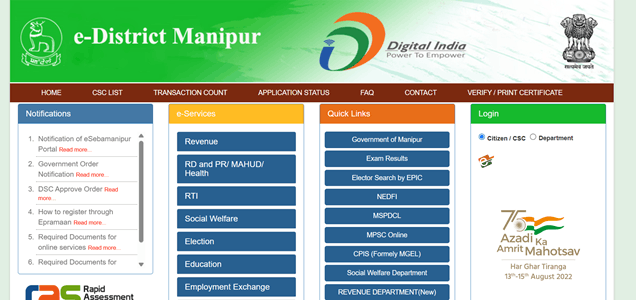
What Services Are Available on e-District Manipur?
The portal covers services from several departments. Some of the important services currently listed include:
- Permanent Resident Certificate
- Domicile Certificate
- Income Certificate
- OBC Certificate
- Scheduled Caste Certificate
- Scheduled Tribe Certificate
- Land Valuation Certificate
- Land Ownership Certificate or Jamabandi
- Birth Certificate
- Death Certificate
- Hindu Marriage Certificate
- Special Marriage Certificate
- Non-Encumbrance Certificate
- Registration in Employment Exchange
- Employment Exchange renewal
- Employment registration transfer
- Updating qualification or experience
- RTI applications
- Grievance submission
- Social welfare pension services
- Selected Youth Affairs and Sports services
The exact services available can change, so applicants should check the Our Services section before starting an application.
How to Register on e-District Manipur
Citizen registration is handled through e-Pramaan, the authentication system connected with the Manipur e-District portal. The official FAQ states that a new user should select the e-Pramaan login option and then choose Register.
Follow these steps:
- Open https://eservicesmanipur.gov.in/eda
- Select the CSC/Citizen login option.
- Click Login with ePramaan.
- Choose New User/Register.
- Enter your name and personal details.
- Provide your address.
- Enter your date of birth.
- Provide an active mobile number.
- Enter a valid email address.
- Create the required User ID and password.
- Complete Aadhaar or other identity verification where requested.
- Enter the OTP received on your mobile if required.
- Complete the captcha.
- Submit the registration form.
- Keep your login credentials safely.
The official help page states that registration information can include name, address, date of birth, email and phone number. A successful registration can also generate an SMS confirmation.
How to Login to e-District Manipur
Existing citizens can use their e-Pramaan credentials to access the portal.
Follow these steps:
- Visit the e-District Manipur website.
- Select CSC/Citizen.
- Click Login with ePramaan.
- Enter your registered username or Aadhaar number.
- Enter your password.
- Complete the captcha.
- Click Login.
- Complete OTP or Aadhaar verification if requested.
- Open your citizen dashboard.
The dashboard provides sections for new, saved and submitted applications.
How to Apply for a Certificate Online
Once logged in, applicants can select the required service from the available departments.
Follow these steps:
- Login to your citizen account.
- Open the New Application or Services section.
- Choose the appropriate department.
- Select the certificate or service you require.
- Click the online application option.
- Fill in all mandatory information.
- Enter your residential and personal details.
- Upload the required supporting documents.
- Upload a photograph if required.
- Check all information carefully.
- Submit the application.
- Save or print the submitted application.
- Note the application number for tracking.
The official portal recommends taking a printout of the submitted form for future reference.
Documents Commonly Required
Requirements differ according to the certificate. Applicants may be asked for:
- Aadhaar Card
- EPIC or Voter ID
- Passport
- PAN Card
- Driving Licence
- Ration Card
- Government photo ID
- Birth Certificate
- High School Leaving Certificate
- Electricity or water bill
- Registered rent agreement
- Bank passbook
- Property or Jamabandi documents
- Passport-size photograph
- Income proof
- Salary certificate
- Income Tax Return
- Caste or tribal membership proof
For example, an Income Certificate application can require residential proof, income evidence and a photograph. Domicile or PRC applications may require residence proof, identity proof, birth proof and a passport-size photograph.
How to Check e-District Manipur Application Status
The portal provides a public Application Status facility.
Follow these steps:
- Open gov.in.
- Click Application Status.
- Enter the required application details.
- Submit the information.
- Check the current status displayed.
Registered users can also login and open the Submitted Application section to check the progress of their application. The portal states that status information is available directly from the Application Status link on the homepage.
How to Download an e-District Manipur Certificate
The portal provides a dedicated Verify / Print Certificate facility for approved certificates.
Follow these steps:
- Visit the Manipur e-District website.
- Click Verify / Print Certificate.
- Enter the Application Number.
- Complete the requested security verification.
- Submit the details.
- Open the issued certificate.
- Download or print the certificate.
The current certificate page specifically provides an Application Number field for downloading a certificate.
Applicants can also check their logged-in account once an application is approved and access the resulting document from the relevant application section.
Applying Through a CSC
Citizens who do not want to complete the application themselves can use a Common Service Centre or authorised kiosk.
When visiting a CSC:
- Carry original supporting documents.
- Carry photocopies where necessary.
- Keep your active mobile phone available.
- Provide the correct personal information.
- Check the form before submission.
- Collect the application acknowledgement.
- Keep the application number safely.
The e-District system supports separate access for registered CSC or kiosk operators.
e-District Manipur Helpdesk
Citizens facing technical problems can contact the official e-District support team.
- Helpdesk Phone: 0385-2447368
- e-District Helpdesk Email: helpdesk.edistrictmn@nic.in
- Department Email: dit-mn@nic.in
The helpdesk operates from the Department of Information Technology, Government of Manipur, New Secretariat, Manipur. The portal lists working hours from 9:30 AM to 6:30 PM, Monday to Saturday, with the second Saturday and Sunday closed.
FAQs About e-District Manipur
Q. What should I do if my application is rejected?
The official e-District FAQ states that once an application has been rejected, further action cannot be taken on that application. Correct the missing documents or procedural issue and submit a fresh application.
Q. Is there any fee for an Income Certificate?
The current official FAQ states that an Income Certificate does not require a service payment. Applicants should still check the latest service page before applying in case rules change.
Q. How long is a Manipur Income Certificate valid?
According to the portal FAQ, an Income Certificate is valid for the current financial year from the date it is issued.
Q. What if I forget my e-District password?
The portal provides a password-recovery facility. The registered user may be asked to provide the User ID and answer the security question. Successful recovery information is sent to the registered email account.
Q. Can I check my application without logging in?
Yes. The homepage provides a separate Application Status option for checking submitted applications. Registered users can also check their applications from their account.
Q. Can I verify or print an already issued certificate online?
Yes. Use the Verify / Print Certificate option on the e-District website and enter the application number to retrieve the available certificate.