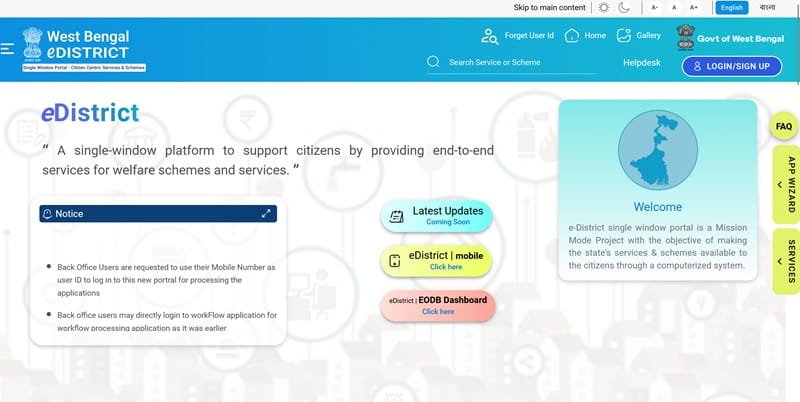
CG e-District is the online citizen-service system of the Government of Chhattisgarh. It allows residents to apply for certificates and other government services, track applications and obtain digitally issued documents without making repeated visits to government offices. The platform has now been upgraded and presented as Sewa Setu, although people still commonly search for it as CG e-District or Chhattisgarh e-District.
Chhattisgarh’s Sewa Setu portal provides online access to services from the Revenue and Disaster Management Department and several other state departments.
Sewa Setu Portal: https://sewasetu.cgstate.gov.in/
CG e-District Is Now Sewa Setu
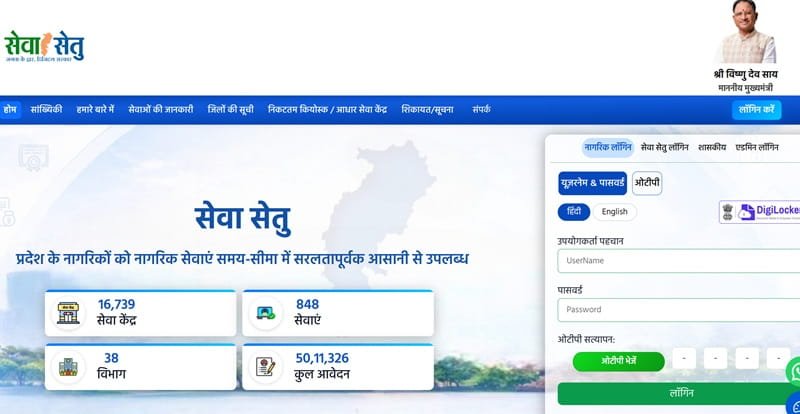
Citizens may see both CG e-District and Sewa Setu while searching for government services. This is because Chhattisgarh’s e-District platform has been upgraded into the newer Sewa Setu system.
Entering cgedistrict.cgstate.gov.in currently takes users to the Sewa Setu portal. The new system provides facilities such as online applications, application tracking and access to digitally issued certificates. It also supports citizen login using either a username and password or a registered mobile number with OTP.
What Services Are Available on Sewa Setu Portal?
The portal covers services from many Chhattisgarh government departments. Popular services displayed on the current portal include:
- Income Certificate
- Residence Certificate
- SC/ST Certificate
- OBC Certificate
- Marriage Certificate
- Trade Licence
- Land-use information
- Municipal services
- Revenue-related services
- Welfare and pension services
- Licences and permissions
- Selected education and employment services
The current service directory includes Income Certificate under the Revenue and Disaster Management Department with a listed timeline of seven days, while SC/ST and OBC certificates are also available through the same department.
The complete service list should always be checked on the portal because new services can be added and some applications may redirect users to specialised departmental websites.
How to Register on Sewa Setu
Citizens who want to apply directly online can create their own account. The official portal confirms that applicants do not necessarily have to visit a Sewa Setu Kendra or CHOiCE Centre to access services.
Follow these steps:
- Open https://sewasetu.cgstate.gov.in
- Select Citizen Login.
- Click the option for New Registration.
- Enter a preferred username.
- Enter your full name.
- Select your district.
- Choose a security question and provide the required answer.
- Enter an active mobile number.
- Provide your email address.
- Fill in your address.
- Check all entered information.
- Click Submit to complete registration.
- Save your username and registered mobile number.
The citizen-registration page currently asks for username, full name, district, security question, mobile number, email and address.
How to Login to Sewa Setu Portal
The current Sewa Setu portal provides more than one citizen-login method.
Login With Username and Password
- Visit the official portal.
- Click Citizen Login.
- Select the username and password option.
- Enter your username.
- Enter your password.
- Complete OTP or other verification if requested.
- Click Login.
Login With Mobile OTP
- Open the Citizen Login page.
- Select the OTP login option.
- Enter your registered mobile number.
- Click Send OTP.
- Enter the OTP received on your phone.
- Click Verify & Login.
The current portal displays both username-password login and registered-mobile-number OTP login facilities. It also provides options for forgotten usernames and passwords.
How to Apply for a Certificate Online
The exact form, documents, fee and processing time depend on the service selected.
The usual procedure is:
- Login to your Sewa Setu account.
- Select Apply for Online Service.
- Search by service name or department.
- Choose the required certificate.
- Click Apply.
- Read the eligibility conditions and document checklist.
- Enter the applicant’s personal information.
- Fill in address, family, income or other details required for the service.
- Upload clear copies of supporting documents.
- Review the application carefully.
- Pay the applicable service charge or government fee, if required.
- Submit the application.
- Save the acknowledgement.
- Note the Application Reference Number, commonly called ARN.
The portal organises services by category and department and also provides a search facility to help citizens find the required service.
Documents Commonly Required
There is no single document list for every CG e-District application. Depending on the certificate, applicants may be asked for:
- Aadhaar Card or accepted identity proof
- Address proof
- Passport-size photograph
- Ration card
- Land or property documents
- Income-related documents
- Existing caste certificate of a family member
- Birth or educational records
- Marriage-related documents
- Self-declaration or affidavit
- Other service-specific evidence
Applicants should use the checklist shown against the chosen service because requirements can differ even between two Revenue Department certificates.
How to Check CG e-District Application Status
The Sewa Setu system provides an online tracking facility.
Follow these steps:
- Visit the Sewa Setu portal.
- Click Application Status or Track Application.
- Enter your Application Reference Number.
- Complete the captcha if requested.
- Click Track Status.
- Check the latest status shown for the application.
The current tracking system accepts an Application Reference Number. It can also provide additional search options using information such as a registered mobile number, applicant name and application dates.
Applicants also receive system-generated SMS alerts at different stages of processing according to the official portal FAQ.
How to Download a CG e-District Certificate
Once an application is approved and the certificate has been digitally generated, citizens do not necessarily need to return to a service centre.
Follow these steps:
- Login to the Sewa Setu/e-District portal.
- Open your submitted or completed applications.
- Select the relevant application.
- Check that its status is approved or completed.
- Look for the certificate or download option.
- Open the digitally issued certificate.
- Download the file to your phone or computer.
- Print a copy if required.
The Chhattisgarh government’s official FAQ confirms that citizens can download and print their certificates directly through the online system. Alternatively, a printed certificate can be collected from a Sewa Setu or CHOiCE Centre by paying the applicable printing charge.
Applying Through Sewa Setu Kendra or CHOiCE Centre
Citizens who do not want to apply themselves can use an authorised service centre. According to the official FAQ, Sewa Setu Kendras and CHOiCE Centres both act as citizen service-delivery centres.
When visiting a centre:
- Carry the required original documents.
- Take photocopies where necessary.
- Keep your mobile number active for OTP and SMS updates.
- Ask the operator to select the correct service.
- Check your name and other details before submission.
- Collect the application acknowledgement.
- Keep the ARN safely for tracking.
CG e-District/Sewa Setu Helpdesk
Citizens facing technical or application-related problems can use the official support facilities.
Helpdesk Phone: 0771-2992035
Sewa Setu Email: sewasetu.helpline@cgchips.in
The portal lists its support address at the State Data Centre Building, Civil Lines, Raipur.
FAQs About CG e-District
Q. Can I apply online without visiting a CHOiCE Centre?
Yes. The official portal allows citizens to register under Citizen Login and apply for available services themselves. A service centre is mainly useful for applicants who need help with online submission.
Q. What should I do if I forget my CG e-District username?
The Citizen Login page provides a Forgot Username option. Use the recovery facility instead of creating another account immediately.
Q. Why does cgedistrict.cgstate.gov.in open Sewa Setu?
Sewa Setu is the newer version of Chhattisgarh’s citizen-service platform. The official CG e-District address currently redirects to the Sewa Setu website, so the redirect is normal.
Q. Can I receive application updates on my phone?
Yes. The official FAQ states that system-generated SMS alerts are sent at different stages of an application. This is why applicants should provide an active mobile number.
Q. Is the processing time the same for every certificate?
No. Each service can have a different prescribed timeline. For example, the current portal lists seven days for an Income Certificate and 22 days for SC/ST and OBC certificates.
Q. Can I get a printed certificate if I do not have a printer?
Yes. Citizens can obtain a printed certificate from a Sewa Setu Kendra or CHOiCE Centre by paying the applicable printing charge instead of printing the downloaded certificate themselves.