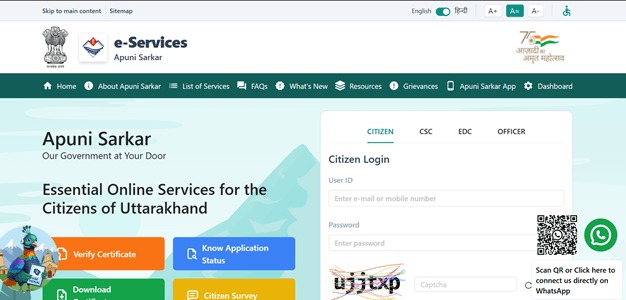
e-District Uttarakhand services are now mainly delivered through the Apuni Sarkar portal, the Government of Uttarakhand’s online platform for citizen services. Residents can use it to apply for certificates, submit supporting documents, track applications and download approved certificates without repeatedly visiting a Tehsil or other government office. The portal is managed by the Information Technology Development Agency (ITDA), Government of Uttarakhand.
Official e-District Uttarakhand/Apuni Sarkar Portal: https://eservices.uk.gov.in/
The portal provides both direct citizen access and CSC-assisted services. People may still search for “Uttarakhand e-District,” but Apuni Sarkar is the current portal to use for most of these online services.
What Services Are Available on e-District Uttarakhand?
Apuni Sarkar brings together services from the Revenue Department and many other state departments. Some important Revenue Department services include:
- Domicile Certificate
- Caste Certificate
- Income Certificate
- EWS Income and Asset Certificate
- Minority Certificate
- Solvency Certificate
- Hill Area Certificate
- Uttarjivi or Varisaan Certificate
- Character Certificate
- Freedom Fighter Certificate
- Stamp Vendor Licence
- Moneylender Business Licence
- Arayaz Naveen Licence
The portal also connects citizens with services from Panchayati Raj, Employment, Urban Development, Labour, Social Welfare, Agriculture, Police, Education and several other departments.
How to Register on e-District Uttarakhand
A new user should create a citizen account before applying for many online services.
Follow these steps:
- Open the Apuni Sarkar portal.
- Select Citizen Login or Individual Login.
- Click Sign Up Here.
- Enter your email ID.
- Select your gender.
- Enter your first and last name.
- Provide an active mobile number.
- Enter your date of birth.
- Select your district.
- Select the appropriate Tehsil.
- Enter your residential address.
- Select your preferred notification language, such as English or Hindi.
- Check the entered details carefully.
- Click Submit.
- Save the User ID and password sent to your registered mobile number.
The official Apuni Sarkar user manual confirms that registration asks for these basic personal and location details and that login credentials are sent to the registered mobile number after successful registration.
How to Login to Apuni Sarkar
After registration, citizens can login to their account and apply for available services.
Follow these steps:
- Visit the official Apuni Sarkar website.
- Open Individual Login.
- Enter your User ID.
- The portal accepts your registered email or phone details in the User ID field.
- Enter your password.
- Type the captcha displayed on the screen.
- Click Sign In.
- The citizen dashboard will open.
- Select the service you want to use.
A Forgot Password option is also available on the login page if you cannot access your account.
How to Apply for a Certificate Online
The exact requirements depend on the certificate, but the basic application procedure remains similar.
Follow these steps:
- Login to your citizen account.
- Choose New Application or the available service option.
- Select the concerned department.
- Choose the certificate you need.
- Read the service details carefully.
- Check the required documents.
- Upload all mandatory documents.
- Fill in the application form.
- Enter personal, address and other service-specific information.
- Use Preview to check the application before submitting it.
- Correct any mistakes.
- Click Submit.
- Pay the applicable fee if the service requires payment.
- Download the application receipt.
- Keep the Application ID safely.
The official user manual confirms that applicants receive an Application ID receipt after final submission and can download the receipt for future reference.
Documents Commonly Required
Every service has its own document list, so applicants should check the requirements shown on the service page.
Depending on the certificate, common documents can include:
- Applicant photograph
- Aadhaar Card
- Other identity proof
- Residence proof
- Ration card or family register
- Land registry or Khatauni
- Electricity or water bill
- Educational documents
- Income proof
- Self-declaration
- Affidavit
- Death Certificate for survivor-related applications
For example, the Income Certificate currently requires an applicant photograph, identity proof, residence proof, ration card or family-register copy and self-declaration. The listed service fee is ₹40 and the portal shows a 15-day service timeline.
How to Check e-District Uttarakhand Application Status
Apuni Sarkar provides a public application-status facility, so applicants can check progress without visiting an office.
Follow these steps:
- Open the Apuni Sarkar homepage.
- Select Know Application Status.
- Enter your Application ID.
- Make sure the number is entered correctly.
- Click the search option.
- View the latest application details and status.
The official status page uses an Application ID in a format such as a 16-character Uttarakhand application number.
How to Download an e-District Uttarakhand Certificate
Approved certificates can be downloaded online. Citizens have two useful options: downloading through their account or using the public certificate-download facility.
To download through the public facility:
- Open the Apuni Sarkar portal.
- Click Download Certificates.
- Choose Application ID or mobile-number search.
- Enter the 16-digit Application ID, or provide the mobile number used in the application.
- Complete OTP verification if searching by mobile number.
- Search for the certificate.
- Open the available certificate.
- Download and save it.
- Print a copy if required.
The portal specifically allows certificate searches using either the Application ID or the mobile number used when submitting the application.
Citizens who applied through their account can also login after approval. According to the official user manual, approved certificates appear under the Certificate Received section and can be downloaded from there.
Applying Through a CSC
Applicants who do not want to complete the online process themselves can use a Common Service Centre. Apuni Sarkar has a separate CSC login and also provides an online facility for finding nearby CSC locations.
When visiting a CSC:
- Carry the required original documents.
- Keep photocopies or scanned copies available.
- Carry your active mobile phone.
- Provide accurate information to the operator.
- Check your name and address before submission.
- Collect the application receipt.
- Keep the Application ID for tracking and certificate download.
e-District Uttarakhand Help and Grievances
Apuni Sarkar provides a dedicated grievance and helpdesk facility for users facing portal or service-related problems.
Official Helpdesk Email: e-helpdesk@uk.gov.in
Citizens can also use the grievance section available on the Apuni Sarkar portal.
FAQs About e-District Uttarakhand
Q. Can I download my certificate if I have forgotten the Application ID?
Yes. The Download Certificates facility also allows users to search using the mobile number entered in the application. OTP verification is required before certificates linked with that number are displayed.
Q. Why is my certificate not visible even though I submitted the application?
Submission does not mean the certificate has been issued. The concerned department must process and approve the application first. Once approved, the certificate becomes available for download.
Q. Do all Apuni Sarkar services cost ₹40?
No. Fees vary by service. Several commonly used Revenue Department certificates currently show a ₹40 fee, but applicants should check the individual service page before submitting payment. For example, Domicile and Caste Certificate pages currently show ₹40.
Q. Can I save an application before final submission?
Yes. The official user manual provides a Save option for applications. Users can also preview the application before submitting it and delete a saved draft if necessary.
Q. How can I find my old e-District family-register application?
Apuni Sarkar provides a separate search facility for old e-District family applications. Users can search by district, block, Gram Panchayat and village, with the family head’s name available as an additional search field.
Q. What should I do if the documents required for my certificate are unclear?
Open the individual service page before applying. Apuni Sarkar displays mandatory and optional documents separately for many services, which helps applicants know exactly what should be uploaded.